 Skip to content
How to set up C-RTK2 HP Positioning and Heading Module
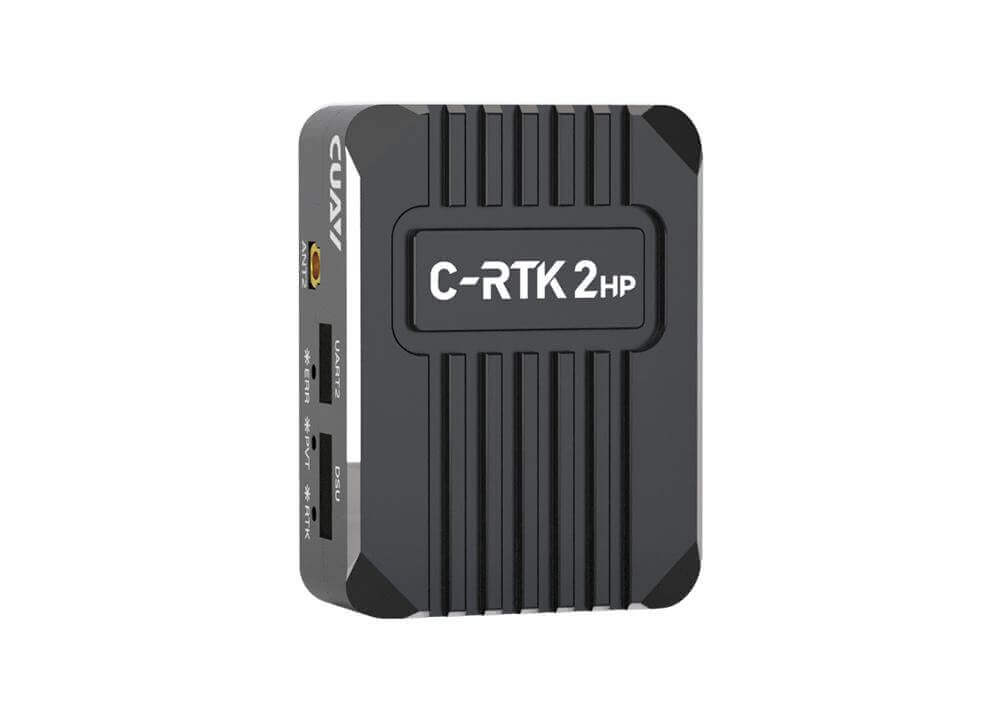
C-RTK2 HP is a full-constellation satellite multi-frequency positioning and heading module independently developed by CUAV. An integrated dual-antenna heading system, one module can realize GPS heading. It makes it easy for unmanned systems to have application scenarios in complex magnetic field environments, such as power line inspections and metal ore inspections. It supports full-system full-band GNSS receivers and provides powerful satellite positioning capabilities. In RTK state, you can get 50+ satellite positioning services and centimeter-level positioning. C-RTK2 HP also supports UART and Dronecan dual communication interfaces. Dronecan can guarantee higher security and stronger anti-interference for data communication, while the UART interface can guarantee compatibility with other non-CAN devices.
C-RTK2 HP is ideal for centimeter-level positioning and heading, especially for unmanned system applications.
Note:
C-RTK2 HP supports ArduPilot 4.4.0 and above firmware
Features
- Full constellation multi-frequency GNSS satellite receiver
- Single module dual antenna heading system**
- RM3100 Industrial Grade electronic compass (for safety redundancy)
- Safe and reliable Dronecan protocol and better compatible URAT interface
- Automatic switching between USB and URAT
- AP Periph Open Source Firmware, Worry-free custom development
Datasheet
Hardware parameters | |
| MCU | STM32F4 |
| Electronic compass | RM3100 |
| Receiver | Centimeter‑level GNSS SOC |
| GNSS | BDS/GPS/GLONASS/Galileo/QZSS |
| Antenna 1(Master) | BDS:B1I、B2I、B3I GPS:L1C/A、L2P/L2C、L5 GLONASS:L1、L2 Galileo: E1、E5a、E5b QZSS:L1、L2、L5 |
| Antenna 2(Master) | BDS:B1I、B2I、B3I BDS:B1I、B2I、B3I GPS:L1C/A、L2C GLONASS:L1、L2 Geo: E1、E5b QZSS:L1、L2 GPS:L1C/A、L2C GLANASS:L1、L2 Galileo: E1、E5b QZSS:L1、L2 |
| Position accuracy(RMS) | Single Point:1.5m(Horizontal)/2.5m(Vertical) DGPS:0.4m+1PPM(Horizontal)/0.8m+1PPM(Vertical) RTK: 0.8cm+1PPM(Horizontal)/1.5cm+1PPM(Vertical) |
| Acquisition | Cold starts<30s Initialization time<5s |
| Data update rate | UP to 20hz(default:5hz) |
| Differential data | RTCM3.X |
| Data protocol | Dronecan/NMEA |
| Sport | Antenna*2、CAN*1、UART*1、DSU*1、USB*1 |
| Operating Voltage | 4.7~5.2V |
| Operating temperature | ‑20~85℃ |
| Size | 50*37*17mm |
| Weight | 40g |
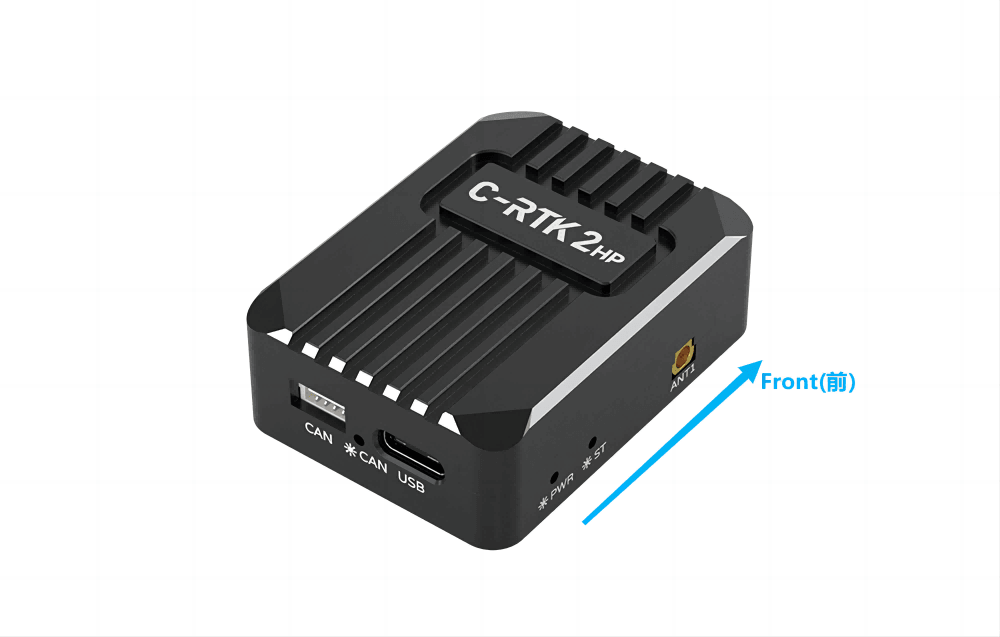
Pinouts
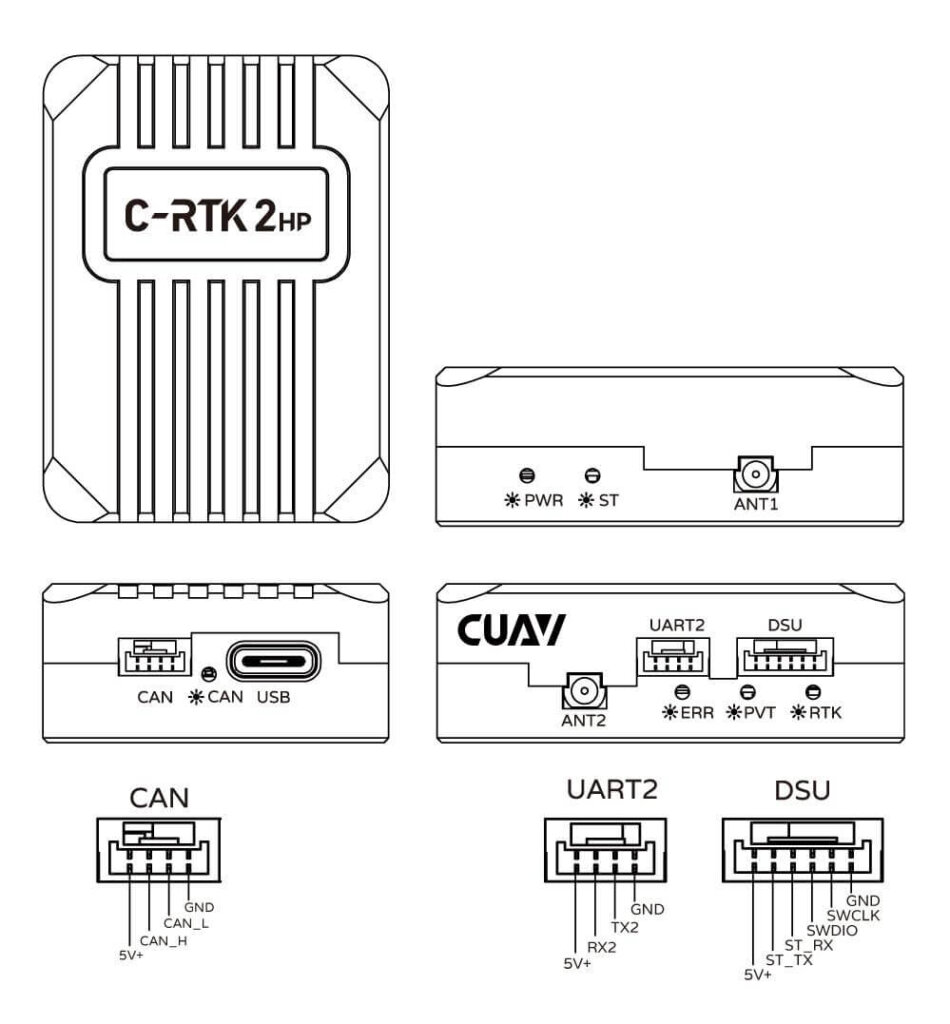
GNSS performance comparison
| ublox F9P‑15B | Centimeter‑level GNSS SOC(C‑RTK2 HP) | |
| Channel | 184 | 1408 |
| GNSS | Four‑star multi‑frequency | Full constellation multi‑frequency |
| GNSS frequency band | L1/L5/G1/G2 B1I/B2I/E1b/E5b | L1/L2/L5/G1/G2 B1/B2/B3I/E1/E5a/E5b |
| Haeding | √(two modules) | √(one module) |
| Antenna | 1 | 2 |
| RTK accuracy | 1cm+1PPM | 0.8cm+1PPM |
Video
C-RTK2 HP User Guide(Ardupilot)
Note
C-RTK 2HP supports connecting to the controller via CAN (DroneCAN) and UART. It is recommended to use CAN. Before configuration, secure the two antennas, keep them more than 30cm apart, and maintain an unobstructed view of the sky. Do not get close to windows or other obstructions; otherwise, you may not be able to obtain heading data.
Hardware connection
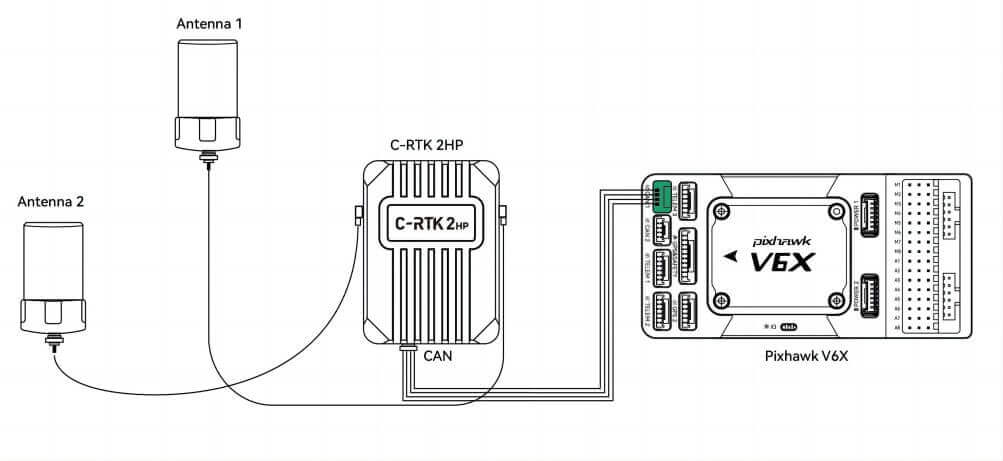
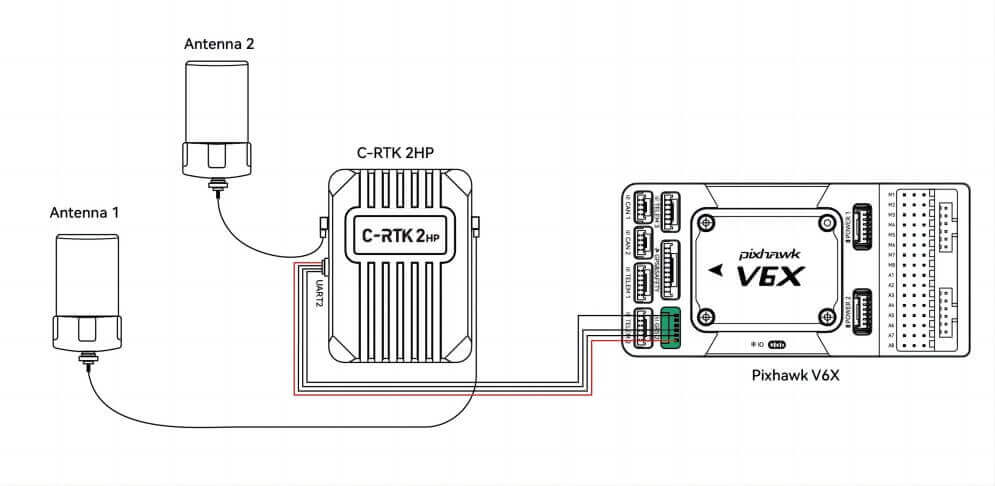
C-RTK2 HP supports connection in the following ways (choose one of the two)
CAN(Recommend)
UART
Enable C-RTK2 HP
Set the following parameters in the Missionplanner/Configuration Assistant/All Parameters table:
GPS_TYPE = 9(droncan:9;UART:25)or GPS1_TYPE=9(AP4.6.0 and above version firmware) CAN_P1_DRIVER=1(CAN1) EK3_SRC1_YAW = 2 or 3(heading source, 2: use GPS haeding. 3: use GPS first, electronic compass as backup)< GPS_AUTO_CONFIG=2(Automatically configure Dronecan GPS)Tip
When you configure the unmanned systems by importing the parameter file, please check whether the following parameters have been modified. Haeding only works when AHRS uses EKF3 as a source of attitude and position estimation.
AHRS_EKF_TYPE=3 EK3_ENABLE=1Master and slave antenna offset
- GPS_MB1_TYPE=1(GPS1 Moving Baseline master antenna offsets relative to slave antenna, also enables the next parameters to be shown)
- GPS_MB1_OFS_X: offset in meters from the “Slave” to “Master” antenna in the X axis (in direction of 0 deg yaw, positive offsets are if “Master” is in front of the “Slave”.
- GPS_MB1_OFS_Y: offset in meters from the “Slave” to “Master” antenna in the Y axis (in direction 90 deg (right) of 0 deg yaw, positive offsets are if “Master” to the right of the “Slave”.
- GPS_MB1_OFS_Z: offset in meters from the “Slave” to “Master” antenna in the Z axis (in direction up and down, positive offsets are if “Master” below the “Slave”.
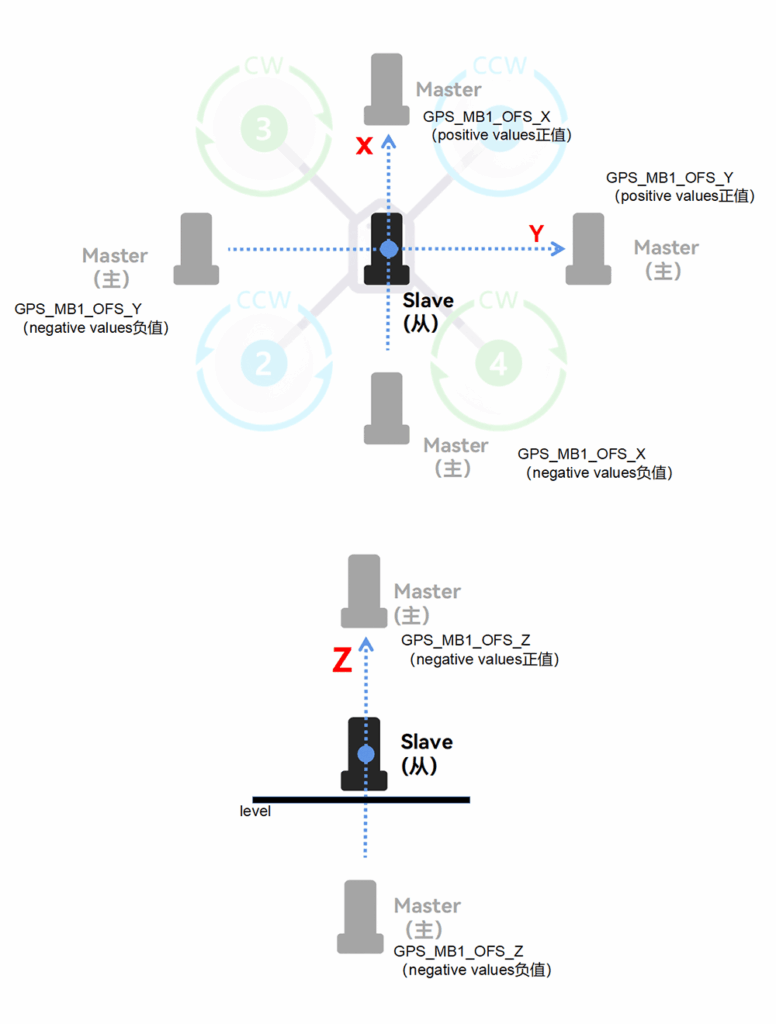
For firmware version 4.6.0 or above
- GPS1_MB_TYPE=1(GPS1 Moving Baseline master antenna offsets relative to slave antenna, also enables the next parameters to be shown)
- GPS1_MB_OFS_X: offset in meters from the “Slave” to “Master” antenna in the X axis (in direction of 0 deg yaw, positive offsets are if “Master” is in front of the “Slave”.
- GPS1_MB_OFS_Y: offset in meters from the “Slave” to “Master” antenna in the Y axis (in direction 90 deg (right) of 0 deg yaw, positive offsets are if “Master” to the right of the “Slave”.
- GPS1_MB_OFS_Z: offset in meters from the “Slave” to “Master” antenna in the Z axis (in direction up and down, positive offsets are if “Master” below the “Slave”.
Note
Antenna 1 (ANT1) is the main antenna, and antenna 2 is the secondary antenna.
Position Offset Compensation
C-RTK2 HP is based on the position of the master antenna. If it cannot be installed at the center of gravity of the unmanned system, you need to set its offset value from the center of gravity for correction.
Note
Failure to set the offset or wrong offset setting will cause the unmanned systems device to obtain wrong positioning information, which will cause a position offset or inaccurate positioning when the unmanned systems course is deflected.
GPS_POS1_X: offset in meters from the Center of Gravity to “Master” antenna in the X axis (in direction of 0 deg yaw, positive offsets are if “Master” is in front of the Center of Gravity.
GPS_POS1_Y: offset in meters from the Center of Gravity to “Master” antenna in the Y axis (in direction 90 deg (right) of 0 deg yaw, positive offsets are if “Master” is to the right of the Center of Gravity.
GPS_POS1_Z: offset in meters from the Center of Gravity to “Master” antenna in the Z axis (in direction up and down, positive offsets are if “Master” is below the Center of Gravity.
For firmware version 4.6.0 or above
GPS1_POS_X: offset in meters from the Center of Gravity to “Master” antenna in the X axis (in direction of 0 deg yaw, positive offsets are if “Master” is in front of the Center of Gravity.
GPS1_POS_Y: offset in meters from the Center of Gravity to “Master” antenna in the Y axis (in direction 90 deg (right) of 0 deg yaw, positive offsets are if “Master” to the right of the Center of Gravity.
GPS1_POS_Z: offset in meters from the Center of Gravity to “Master” antenna in the Z axis (in direction up and down, positive offsets are if “Master” is below the Center of Gravity.
Example
The following figure is installed as an example:
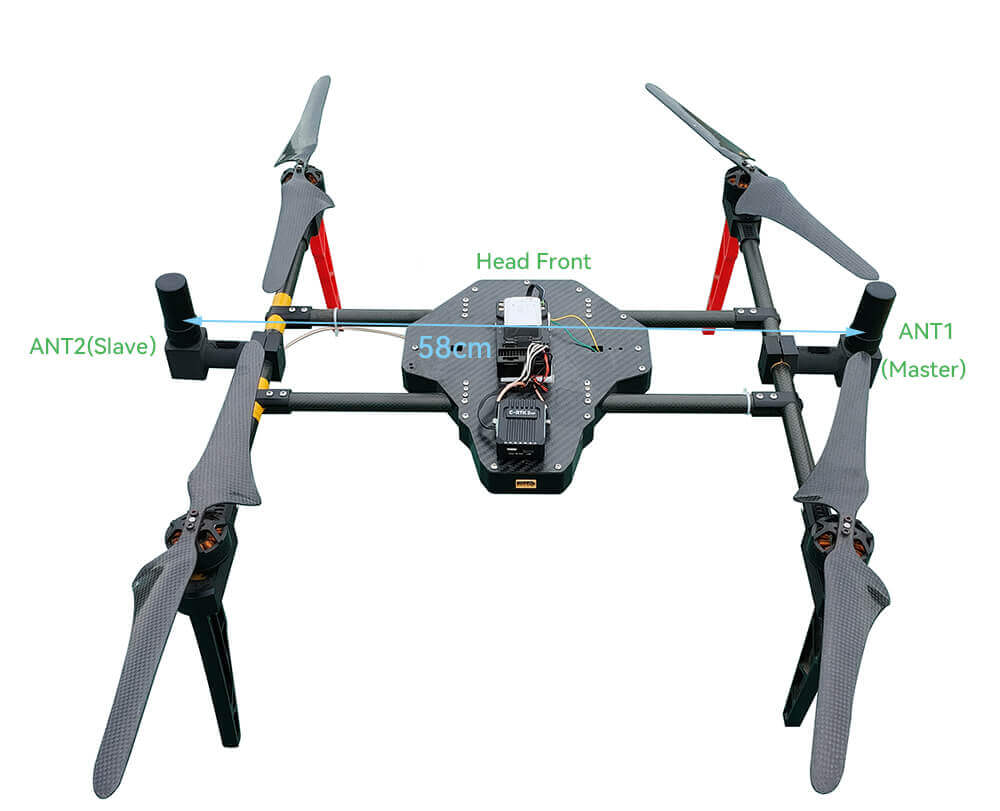
The main antenna is located on the right side of the center of gravity, and the slave antenna is 2cm above the center of gravity.
Enable C-RTK2 HP
GPS_TYPE=9(droncan) EK3_SRC1_YAW =3 CAN_P1_DRIVER=1(CAN1) GPS_AUTO_CONFIG=2 GPS_MB1_TYPE=1Antenna offset setting
GPS_MB1_OFF_X=0 GPS_MB1_OFF_Y=0.58 GPS_MB1_OFS_Z=0Position offset setting
GPS_POS1_X=0.00 GPS_POS1_Y=0.29 GPS_POS1_Z=-0.02Check heading
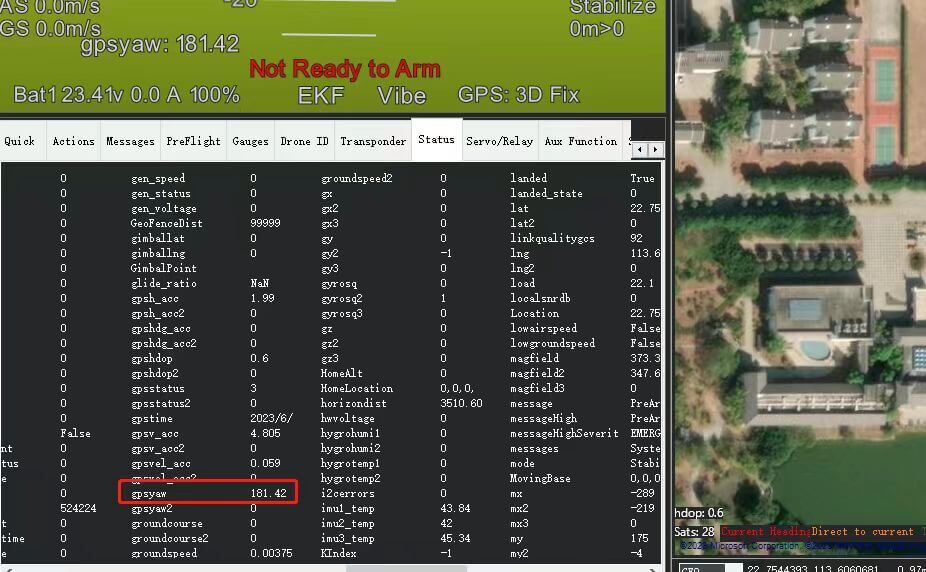
- GPS heading information is in the flight data toolbar of Missin planner > gpsyaw in the status bar.
- Check if the gpsyaw value is consistent with the real heading.
- Rotate the airframe to check if the gpsyaw value responds correctly to the rotation.
Note
If you can’t know the real direction, you can use the phone’s built-in electronic compass, etc. as a reference (in the absence of magnetic field interference and not close to the battery)
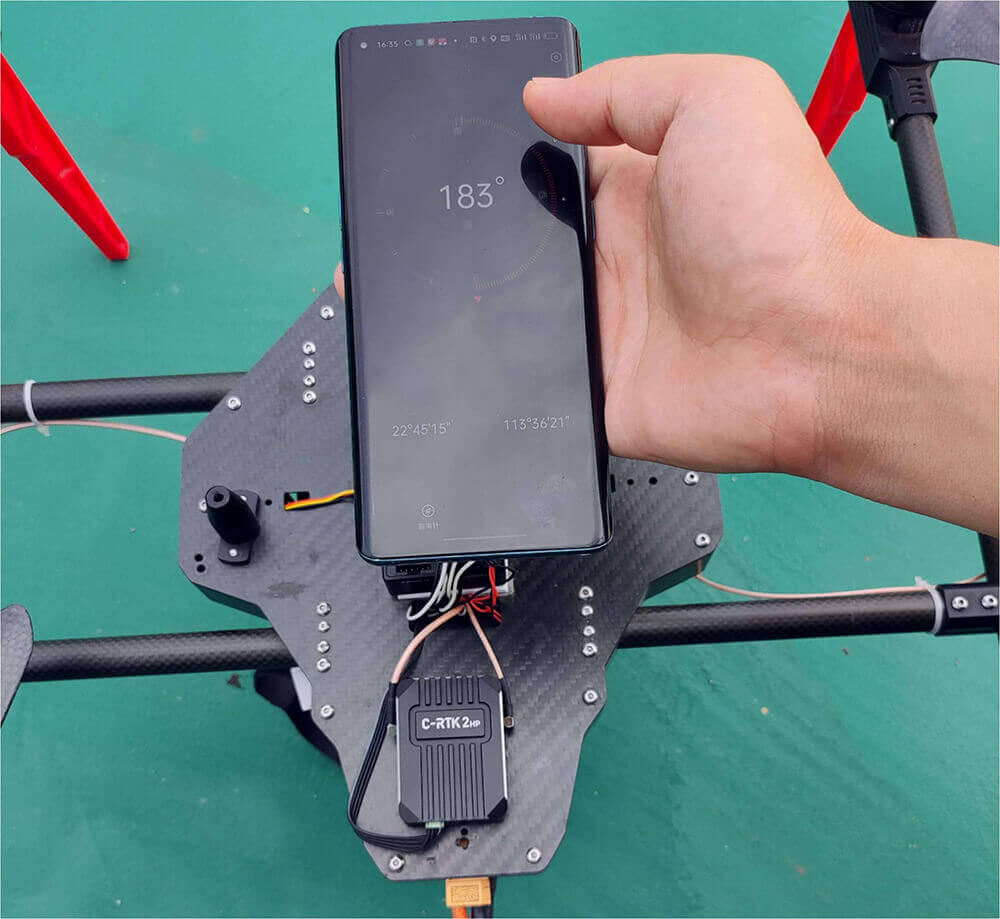
Purpose of electronic compass
C-RTK2 HP has a built-in RM3100 magnetic electronic compass, which can be used as a safety redundancy (when EK3_SRC1_YAW =3). The electronic compass needs to be calibrated when needed. The installation direction should be consistent with the direction of the aircraft.
Note
Electronic Compass calibration is not required when the electronic compass is not in use and can be installed in any orientation
RTK Correction
C-RTK2 HP can be used with the C-RTK 9ps base station, or the Ntrip(CORS )Network RTK base station, which realizes RTK centimeter-level positioning
C-RTK2 HP User manual(PX4)
This chapter applies to C-RTK 2HP with PX4 flight stack (flight controller running PX4 firmware).
Note
C-RTK 2HP supports connecting to the controller via CAN (DroneCAN) and UART. It is recommended to use CAN. Before configuration, you need to fix the two antennas and keep a distance of more than 30cm and maintain an open view of the sky. Do not get close to windows or other obstructions, otherwise you may not be able to obtain heading data.
DroneCan
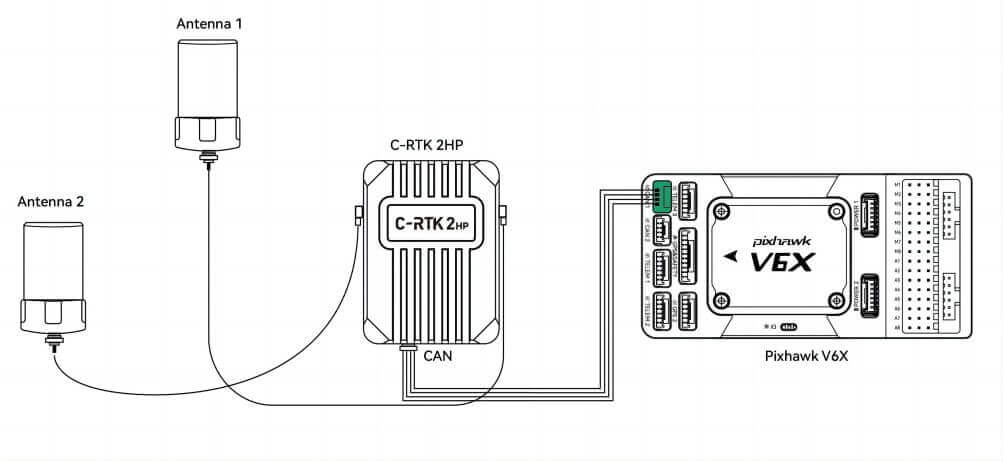
Enable C-RTK 2HP
UAVCAN_ENABLE=”Sensors Automatic Config”.EKF2_GPS_CTRL=15 (use dual antenna orientation as heading source). (If the primary antenna is in front, set the heading offset to 0. The angle increases clockwise if the primary antenna is on the right side of the vehicle and the secondary antenna is on the left (set the offset to 90 degrees).EKF2_GPS_POS_X, Y/Z(Configure the distance between the main antenna and the center of gravity of the unmanned systems. If the antenna is fixed 25cm to the right of the center of gravity of the unmanned systems, configure EKF2_GPS_POS_Y to 0.25.UAVCAN_PUB_RTCM=Enable or UAVCAN_PUB_MDB (if using RTK, subscribe to PX4 flight control to forward RTCM data to the base station).
Note
Antenna 1 (ANT1) is the main antenna, and antenna 2 is the secondary antenna.
Configure C-RTK 2HP parameters
If the main antenna is not installed directly in front of the slave antenna, you need to configure the antenna installation direction for C-RTK 2HP.
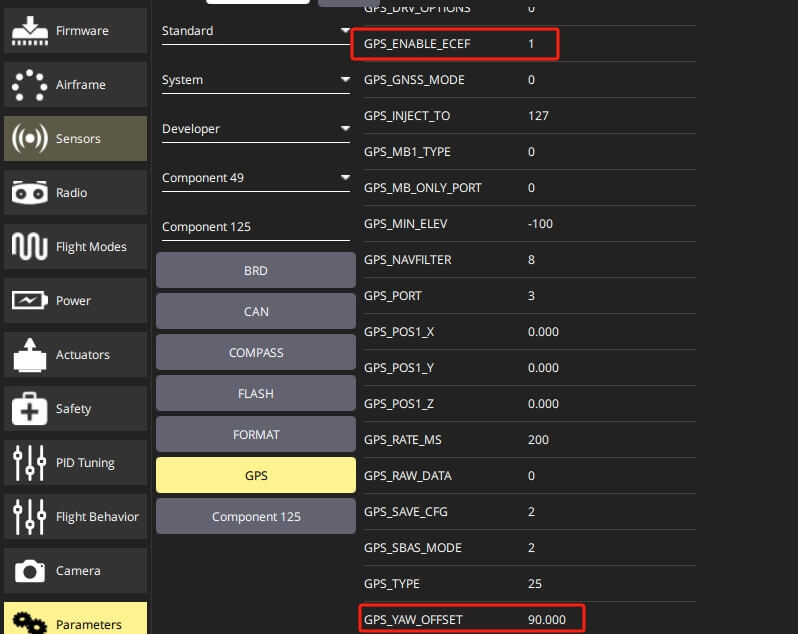
- QGC ground station》Parameters》Component X (X is the node ID)》GPS
- Set the
GPS_YAW_OFFSET(C-RTK2 HP parameter) According to the relative installation direction of the main antenna and the slave antenna. If the main antenna is in front, set the heading offset to 0. The angle increases in the clock direction. If the main antenna is on the right side of the vehicle, if the antenna is on the left, set the offset to 90 degrees. - set
GPS_ENABLE_ECEFto 1. EKF3_MAG_TYPE=5 (do not use a electronic compass, turn it off if you don’t need it)
Tip
Don’t set the
GPS_YAW_OFFSETparameter of the flight controller incorrectly, as it is invalid for the heading data of C-RTK 2HP.
Confirm heading information
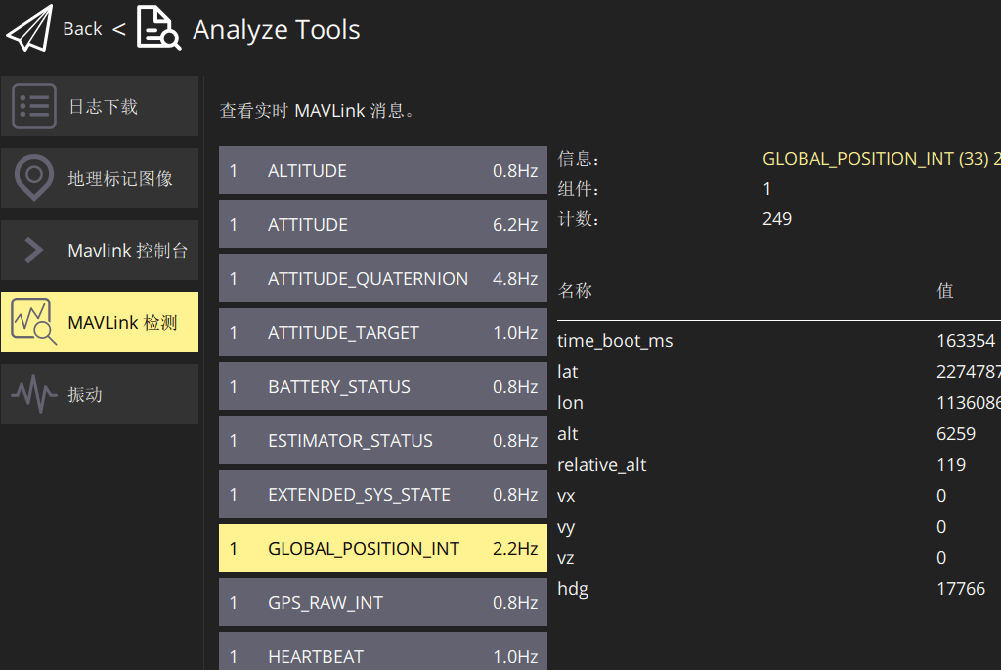
After the setup is completed, place the vehicle outdoors in a good air environment and perform GPS star searching. When the GPS positioning is completed, you can observe whether the YAW value of GPS_RAW_INT is consistent with the aircraft heading in the QGC》mavlink detection interface. If they are consistent, the setting is correct. If they are inconsistent, please check the GPS_YAW_OFFSET configuration of C-RTK2 HP.
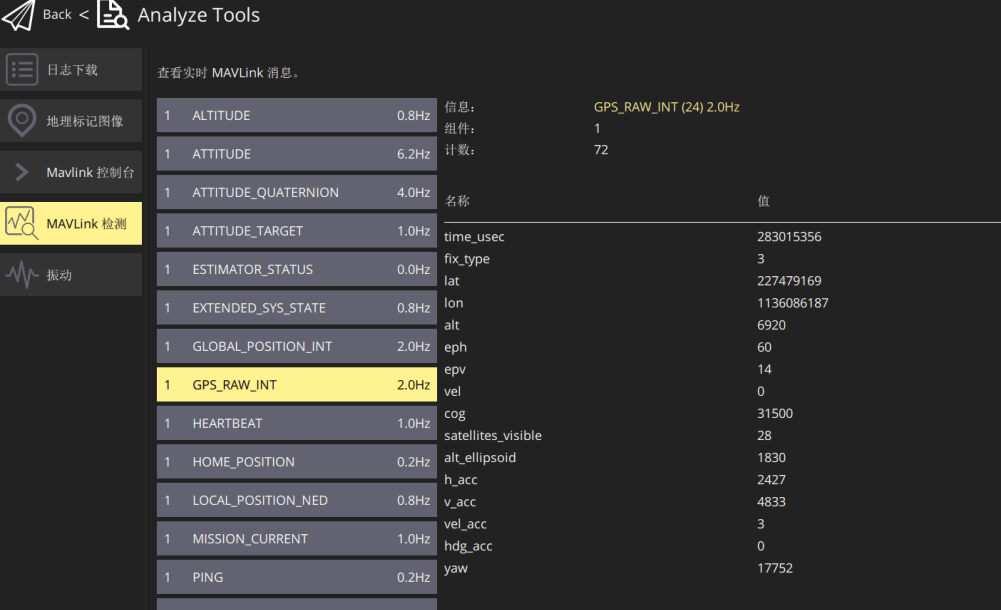
- The HDG value of GLOBAL_POSITION_INT is consistent with the yaw value of GPS_RAW_INT, indicating the aircraft heading using GPS direction data.
Tip
If C-RTK 2HP still cannot obtain heading data after successful positioning and there is no
GPS_YAW_OFFSET/GPS_ENABLE_ECEFparameter in the QGC CANNODE parameter table, please upgrade the C-RTK 2HP firmware.
Firmware upgrade
PX4 can upgrade device firmware via DroneCAN. The flight controller and module communicate through CAN and are recognized normally. Copy the new firmware binary file (.BIN suffix) to the root directory of the SD card of the flight controller, and then restart. After startup, the flight controller will automatically transfer the firmware to the module and upgrade it. If the upgrade is successful, you can see that the firmware file in the SD card is automatically deleted, and a file named XX.bin is generated in the ufw directory.
The RTK system uses QGroundControl and the intelligent controller to forward the RTCM3 data from the RTK base station to the C-RTK 2HP and solve it.
The specific setting method is here.
Note
We recommend using C-RTK 9ps as an RTK base station instead of C-RTK 2HP because it requires a lot of setup work as an RTK base station.
Method 2: Make UART connect to the controller
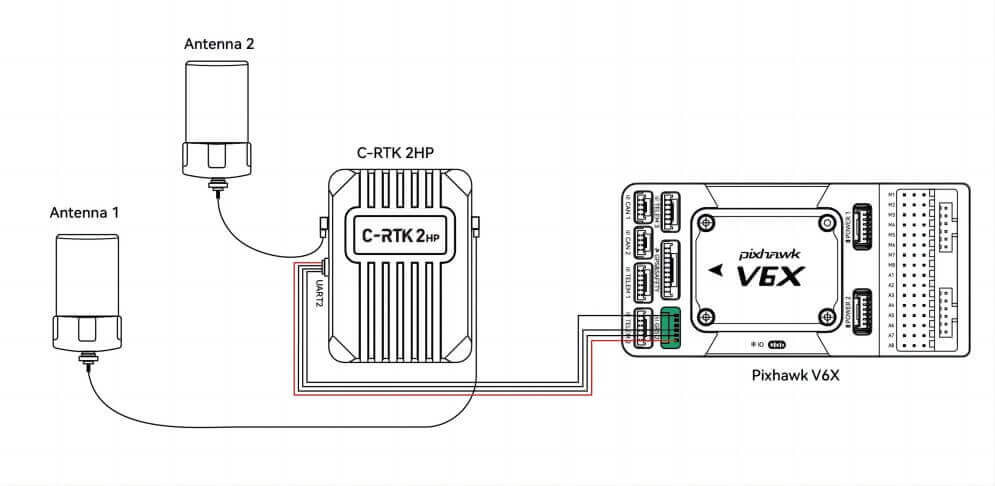
UART
Note
PX4 cannot parse C-RTK 2HP heading data via Dronecan. It can be connected to the PX4 flight stack via the UART2 port to support heading.
C-RTK 2HP Config
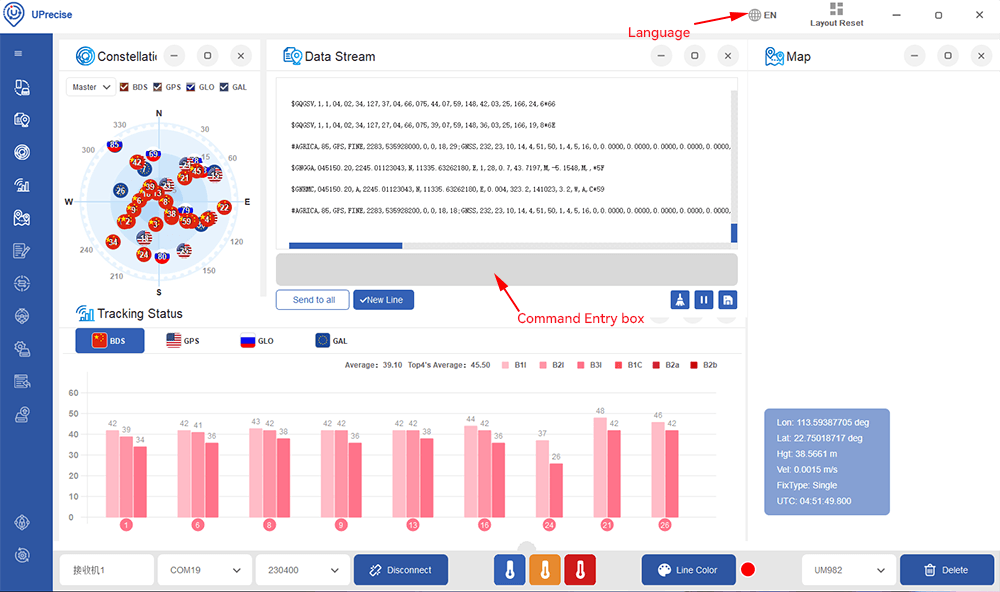
- Press ENTER on the keyboard:
CONFIG COM2 230400 8 n 1 GPGGA 0.2 CONFIG HEADING FIXLENGTH CONFIG UNDULATION AUTO CONFIG UNIHEADINGA 0.200 AGRICA 0.200 MODE MOVINGBASE GNGGA 0.200 GNRMC 0.200 VERSIONA SAVECONFIGPX4 parameter configuration
To use heading instead of an electronic compass in PX4, you need to modify the following parameters in the QGC Ground Station>Parameters page:
Ser_gps1_baud=230400 Gps_1_protocol=6:nmea EKF2_GPS_CTRL=15 //Using dual antenna orientation as heading source) GPS_YAW_OFFSET //If the primary antenna is in front, set the heading offset to 0. The angle increases clockwise, if the primary antenna is on the right side of the vehicle and the secondary antenna is on the left, set the offset to 90 degrees) EKF2_GPS_POS_X,Y/Z //Configure the distance between the main antenna and the unmanned systems's center of gravity. If the antenna is fixed 25cm to the right of the unmanned systems's center of gravity, configure EKF2_GPS_POS_Y to 0.25)RTK Corrections
QGroundControl and the intelligent controller forward RTK base station RTCMv3 to C-RTK 2HP for solving. The module should then change the positioning type to RTK positioning.
The specific RTK base setting method is here.
Note
We recommend using C-RTK 9ps, such a module as RTK base rather than C-RTK 2HP, as it requires a lot of setup.
FAQ
1. Can C-RTK 2 HP be used as an RTK base?
- C-RTK2 HP is not designed as a base station, and it is complex to use as one; it is recommended to use the C-RTK 9Ps base station or to use it in conjunction with other base stations.
2. Why do you need GPS Haeding?
- The GPS haeding system can replace the electronic compass and solve the electronic compass interference problem caused by the magnetic field generated by the internal circuit of the unmanned systems or the external complex magnetic field environment. It can be widely used in unmanned system power inspection, ship take-off and landing, mine inspection, and other application scenarios.
3. I only use haeding, do I need an RTK base station?
- C-RTK2 HP obtains heading data in single-point positioning and RTK state; an RTK base station is not required, but it can be added to achieve accurate centimeter-level positioning.
4. How far apart do the master and slave antennas need to be?
- There is no mandatory requirement. It is generally recommended that the installation distance be greater than 30cm. The larger the distance, the better the directional stability.
5. Can only one antenna be installed?
- If you don’t need haeding date, you can install only the main antenna (ANT1).
6. C-RTK2 has two antennas, which antenna is the location for positioning?
- The latitude and longitude reported by C-RTK2 are the positioning data of the main antenna (if no GPS offset is set)
Set rtkbase in Missionplanner
If you use Ardupilot firmware to build an RTK differential system, you need to perform base station-side positioning configuration and data forwarding through the mission planner. During the positioning configuration of the base station, there is no need to start the mobile station and unmanned systems.
- Open the Mission Planner
- Enter the initial settings
- Click on the optional hardware
- Click on RTK/GPS Inject, and you will see the following page:
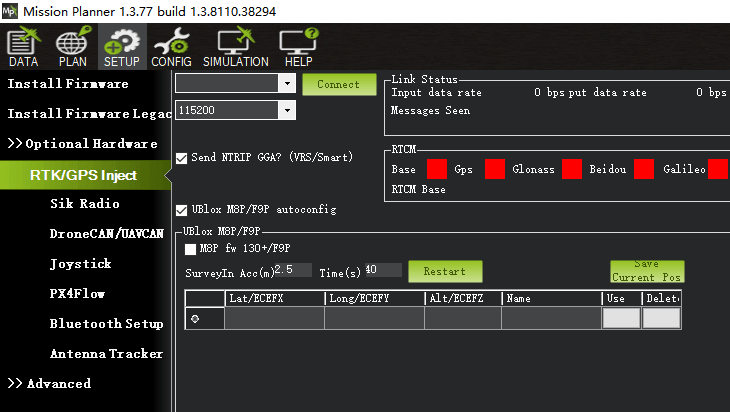
- Set the base station port in the upper left corner
- Click connect
- In the SurveyIn Acc section, enter the absolute geographic accuracy that you expect your C-RTK base station to achieve. In the Time field, enter the shortest search time you want.
- Click Restart (the ground station will transfer the data you input to the C-RTK base station, and the base station will start a new round of search star positioning)
- You will see the following page: During the search process, the current search star positioning will be displayed in the box on the right side of the Mission Planner page:
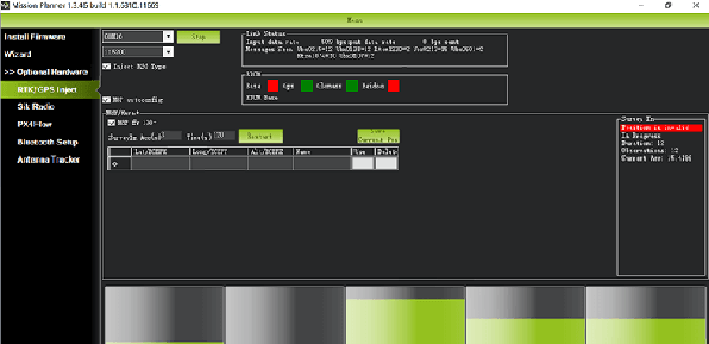
- Position is invalid: The base station has not yet reached a valid location.
- In Progress: Search Star is still in progress.
- Duration: The number of seconds the current search star has been executed.
- Observation: the number of observations obtained.
- Current Acc: The absolute geographic accuracy that the current base station can achieve.
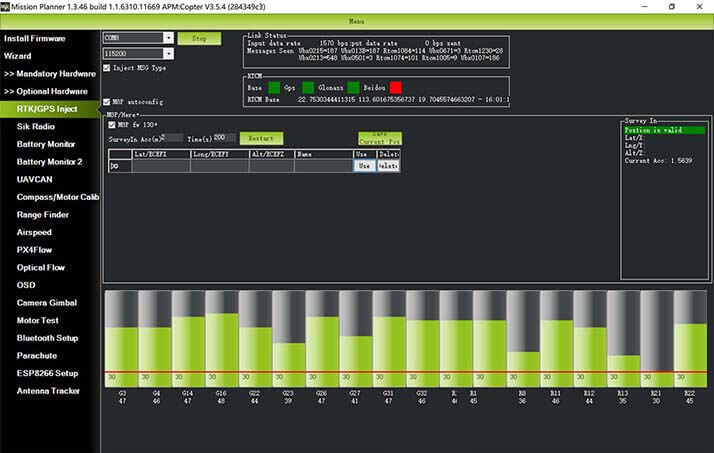
- The green vertical bar below Mission Planner shows the satellite and satellite signal strengths currently searched by the base station. The base station requires a certain amount of convergence time to meet your desired accuracy requirements. After testing, in an unobstructed area, it takes a few minutes to reach an absolute accuracy of 2m, and an absolute accuracy of less than 30cm takes about one hour, and it takes several hours (under ideal conditions) to achieve an accuracy of less than 10cm.
Note
The absolute geographic accuracy of the base station here will affect the absolute geographic accuracy of the mobile station without affecting the relative accuracy of the base station and the mobile station. If your application does not require unmanned systems with high absolute geographic accuracy, you don’t need to set the base station’s accuracy too high, resulting in longer search times. Even if the accuracy of the base station is 1.5~2m, the positional accuracy of the mobile station relative to the base station can still reach the centimeter level.
After the base station search star is completed, the Mission Planner will display the following page:
Using NTRIP Network RTK Base Station
Missionplanner supports the NTRIP protocol to access the CORS network RTK base station service instead of the RTK base.
Setup Tutorial:
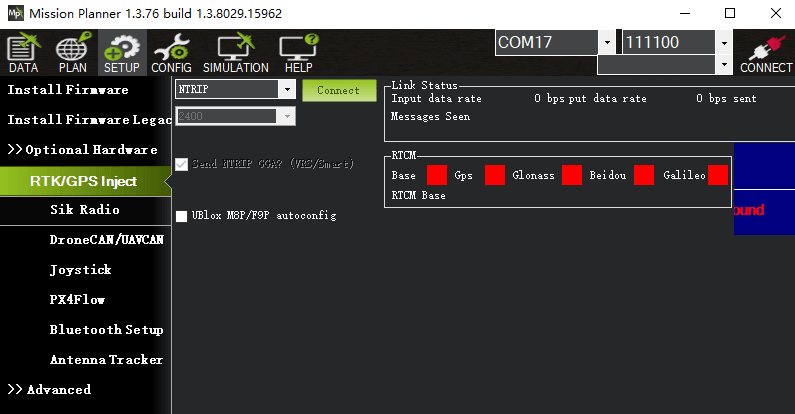
- Set to NTRIP in MP Ground Station>Initial Settings>Optional Hardware>RTK/GPS Inject
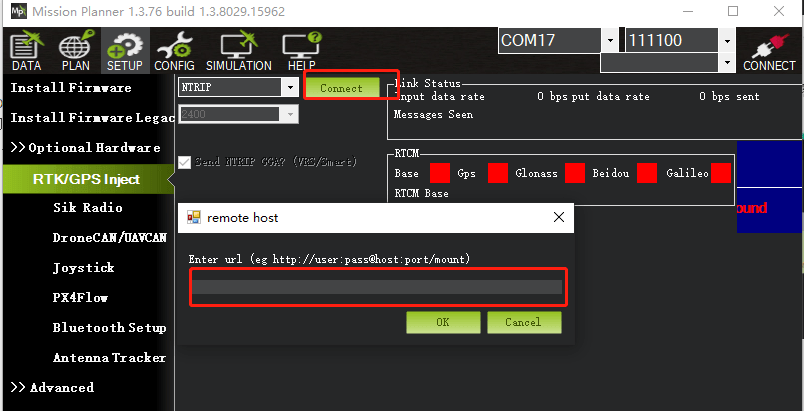
- Click “Connect” to enter the URL.
Tip
URL format: http://Account:password@host:port/RTCM32_GGB.
Note
Ardupilot uses the WGS84 coordinate system, and the CORS port number should be set to 8002; the MP ground station will save observation log files in the log storage folder during work, which can be used for PPK post-calculation.
RTK positioning status
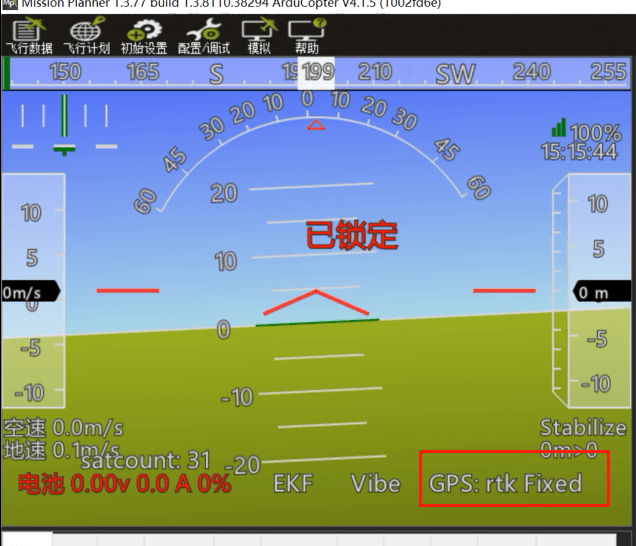
Using the paired digital transmission module to connect to the same Mission Planner ground station, the data of the base station will be transmitted to the C-RTK mobile station on the unmanned systems through the data transmission module. On the main page of Mission Planner, you can see that the current GPS status of the unmanned systems is displayed as RTK Float/RTK Fixed/3D RTK, indicating that the unmanned system’s positioning has entered the RTK state.
RTK Float is a floating-point solution.
RTK Fixed is a fixed solution.
RTK Fixed has higher accuracy and is extremely environmentally demanding, and positioning can enter the RTK Fixed state when the signal is good enough。

Purchase Channels
CUAV Downloads

Products Brochure

Product Usage Scope and Limitations
